
Views: 222 Author: Wendy Publish Time: 2025-05-24 Origin: Site


Content Menu
● Preparation Before Replacing the LCD Screen
● Step-by-Step Guide: How Do You Replace LCD Screen on A Satellite C55D-B5242
>> Step 1: Power Down and Remove Battery
>> Step 2: Remove the Screen Bezel
>> Step 3: Unscrew the LCD Screen from the Mounting Brackets
>> Step 4: Disconnect the Video Cable
>> Step 5: Remove the Damaged Screen
>> Step 6: Install the New LCD Screen
>> Step 7: Reattach the Screen Bezel
>> Step 8: Reinstall the Battery and Test
● Tips and Precautions When Replacing the LCD Screen
● FAQ About Replacing LCD Screen on Satellite C55D-B5242
>> 1. How do I know if my Satellite C55D-B5242 screen needs replacement?
>> 2. Can I use any LCD screen for the Satellite C55D-B5242?
>> 3. How long does it take to replace the LCD screen?
>> 4. What if the new screen stays black after replacement?
>> 5. Is it necessary to remove the keyboard or other components to replace the screen?
Replacing the LCD screen on a Toshiba Satellite C55D-B5242 laptop is a manageable task if you follow the correct steps carefully. This guide will walk you through the detailed process of how do you replace LCD screen on a Satellite C55D-B5242, from preparation to final testing, ensuring you can restore your laptop's display functionality confidently.
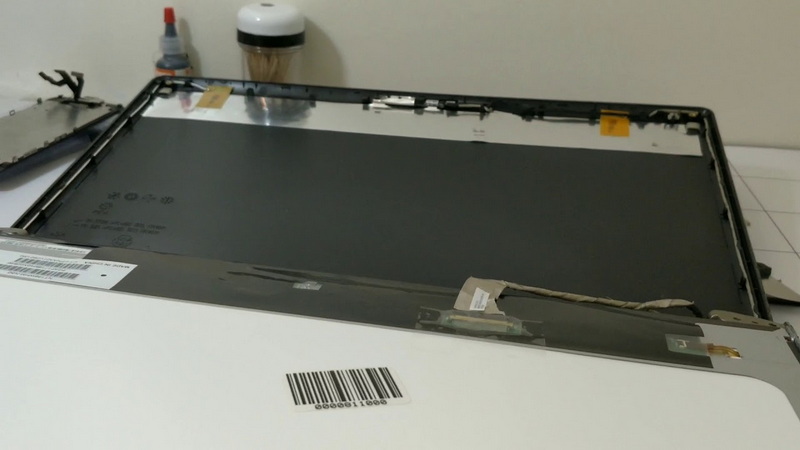
Before starting the replacement, ensure you have the necessary tools and a replacement screen compatible with the Satellite C55D-B5242 model. The typical tools required include:
- A small Phillips screwdriver (PH0 or PH1 size)
- A plastic or metal pry tool
- Tweezers (optional, for handling small screws or connectors)
- An X-Acto knife or thin blade (for removing screw covers and adhesive tape)
Also, make sure you have a clean, static-free workspace to avoid damaging any components.
- Shut down your laptop completely.
- Disconnect the AC power adapter.
- Flip the laptop over and locate the battery release latches.
- Slide the latches to unlock and carefully remove the battery to ensure no power is running through the device during the repair.
- On the front of the screen, look for small plastic screw covers usually located at the bottom corners of the bezel.
- Use the X-Acto knife or a thin blade to gently pry off these covers.
- Using the Phillips screwdriver, remove the screws hidden beneath these covers.
- Carefully pry the bezel away from the screen assembly by inserting your fingers or a plastic pry tool along the edges and gently snapping it off. Work your way around the screen to release all clips without breaking them.
- Once the bezel is removed, you will see the LCD screen secured to metal mounting brackets on each side.
- Locate and remove the screws holding the screen to these brackets. Typically, there are two or three screws on each side.
- Sometimes, you may need to loosen (not fully remove) screws on the mounting brackets near the hinges to tilt the screen forward for better access.
- Carefully tilt the screen forward to expose the back.
- Locate the video cable connected to the back of the screen.
- Gently peel back any adhesive tape securing the cable.
- Using your fingers or tweezers, carefully unplug the video cable by pulling it straight out without bending or twisting.
- After disconnecting the cable and removing all screws, carefully lift the screen away from the laptop.
- Place it aside safely.
- Take your replacement screen and remove any protective films.
- Connect the video cable to the new screen, ensuring it clicks into place firmly and evenly.
- Secure the cable with adhesive tape as it was originally.
- Align the new screen with the mounting brackets and reinsert the screws on both sides.
- Tighten the screws securely but avoid overtightening.
- Snap the bezel back onto the screen assembly by aligning the clips and pressing gently around the edges.
- Replace the screws at the bottom corners and cover them with the plastic screw covers.
- Flip the laptop back over and reinstall the battery.
- Connect the AC adapter and power on the laptop.
- Verify that the new LCD screen displays correctly without flickering or dead pixels.
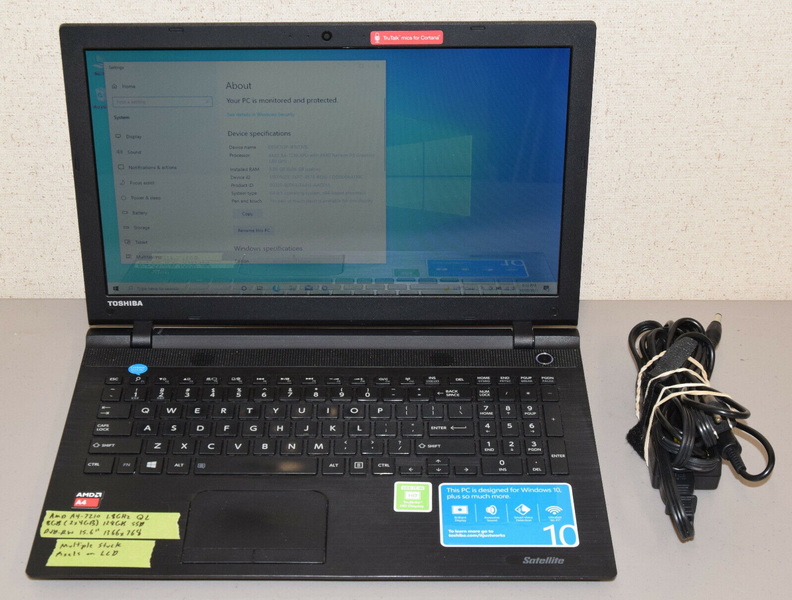
- Always disconnect power sources before starting the replacement to avoid electrical damage or personal injury.
- Keep track of all screws and parts removed; organizing them in order helps during reassembly.
- Be gentle when prying off the bezel to avoid breaking plastic clips.
- Avoid touching the LCD screen surface directly to prevent fingerprints or damage.
- If the screen does not turn on after replacement, double-check the video cable connection and screw tightness.
Knowing how do you replace LCD screen on a Satellite C55D-B5242 can save you time and money by avoiding professional repair fees. The process involves careful disassembly, disconnecting the old screen, and installing a new compatible LCD panel. With the right tools and patience, you can restore your laptop's display to full functionality. Always handle components delicately and follow the steps methodically for the best results.
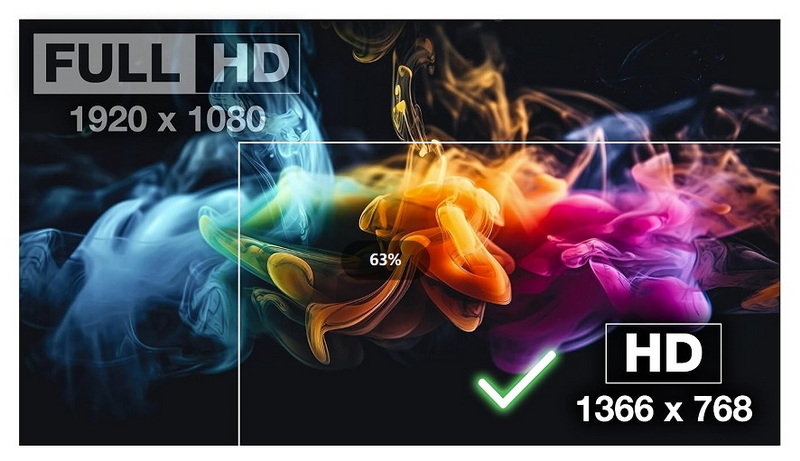
If your screen is cracked, flickering, showing lines, or completely black but the laptop powers on and works with an external monitor, it likely needs replacement.
No, you must use a compatible screen model designed for the Satellite C55D series. Check the part number on your original screen or consult a parts supplier.
For someone familiar with laptop hardware, it usually takes about 30 to 60 minutes to replace the screen properly.
Double-check the video cable connection and ensure it is firmly attached. Also, verify that the screen is compatible. If issues persist, the problem might be with the motherboard or backlight circuit.
No, for the Satellite C55D-B5242, the screen replacement typically only requires removing the bezel and screen assembly without disassembling the keyboard or other major parts.